GammaCurve documentation.
Installation, the curve model, the six DCTLs, every control, and how to keep grades reproducible across a project.
Overview
GammaCurve is a collection of six DCTLs for DaVinci Resolve that give you precise, repeatable control over contrast — from a single clip to the whole film. Every adjustment is expressed in linear-light stops, the unit colourists already think in.
The curves tool in Resolve is powerful, but fundamentally imprecise: you drag a point and something happens, but you can’t easily say how much, or reproduce it on another clip without guessing. GammaCurve replaces that guesswork with stop-based control. Every move is explicit, readable, and reproducible.
The DCTLs operate entirely within your log grading space. They don’t touch your input or output transforms.
Installation
GammaCurve installs like any DCTL. Place the files in Resolve’s LUT directory and apply through a DCTL node.
- Unzip the download. You’ll find GC01.dctl through GC06.dctl.
- Copy the .dctl files into your Resolve LUT folder (Project Settings → Color Management → Open LUT Folder).
- In Resolve, right-click your LUT list and choose Refresh.
- Add a DCTL node, open the Settings tab, and select the GammaCurve DCTL from the DCTL List dropdown.
- Place the node inside your log grading space, before your output transform.
DCTL execution requires DaVinci Resolve Studio. The free version of Resolve can read DCTLs in some workflows but full DCTL support is a Studio feature.
The curve model
Three ideas define how every GammaCurve DCTL behaves. Understanding them makes the controls predictable.
Middle gray at 50% — always
The curve is normalised so that middle gray sits at exactly the 50% position, regardless of which log space you’re working in. This isn’t cosmetic: control points are positioned relative to how the image actually looks, not relative to an arbitrary signal value. A +1 stop midtone shift feels like a +1 stop midtone shift every time.
Stop-based adjustments
Every gamma slider is calibrated in linear-light stops. The range is ±4 stops, with 0.25-stop precision in the Precise variants. Lift the shadows half a stop; pull the highlights down a stop and a half — every value is something you can write down and recreate.
Monotone spline interpolation
The curve through your control points uses the Fritsch–Carlson monotone cubic Hermite method. It passes exactly through every point you set, stays smooth between them, and is mathematically guaranteed never to invert — no accidental tonal reversals, no matter how extreme your adjustments.
True gamma, not luma: adjustments apply equally across all three channels. The relationship between R, G, and B is preserved, with no luma-extraction artefacts.
The six DCTLs
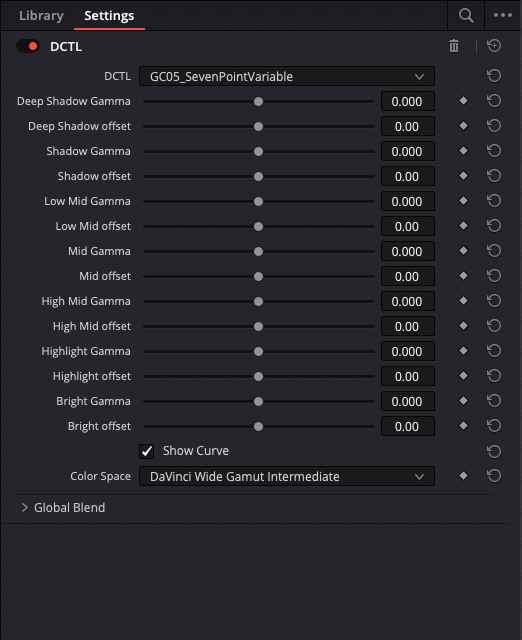
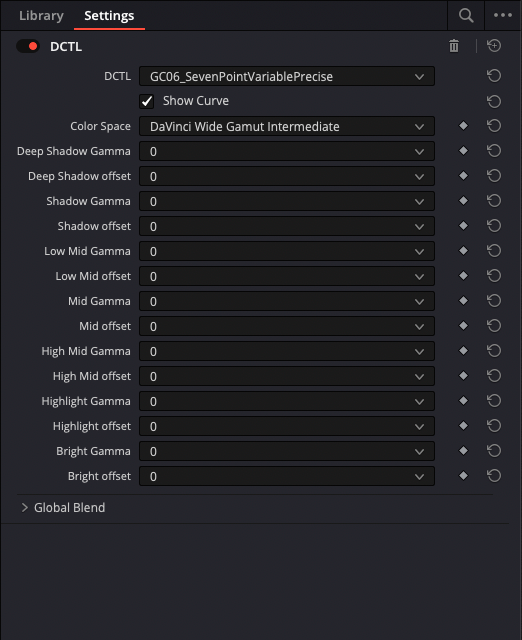
Choose the level of control each grade needs. All six share the same middle-gray normalisation and monotone spline. Expand any DCTL to see its inspector inside DaVinci Resolve.
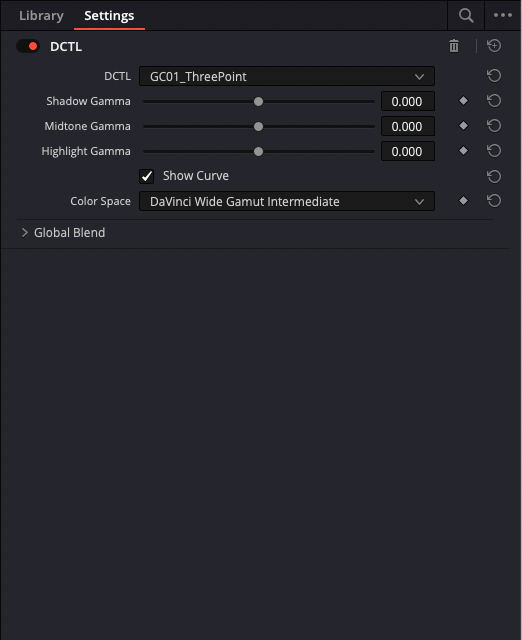
3 control points, free-drag gamma. Black & white fixed. Fast, intuitive shaping.
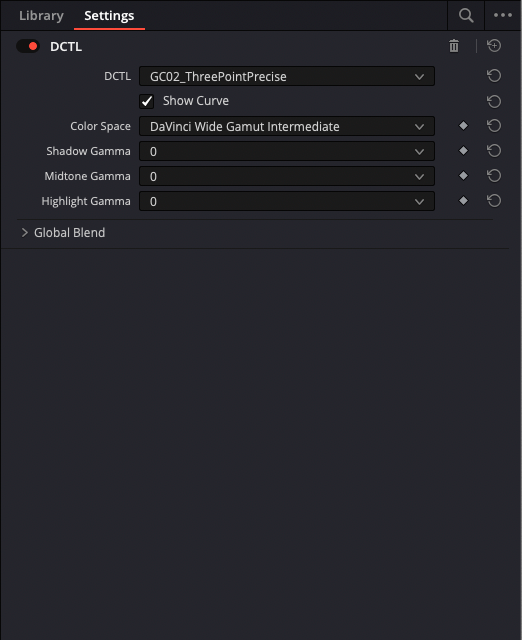
Gamma via dropdown, exactly 0.25-stop steps. Match grades across clips.
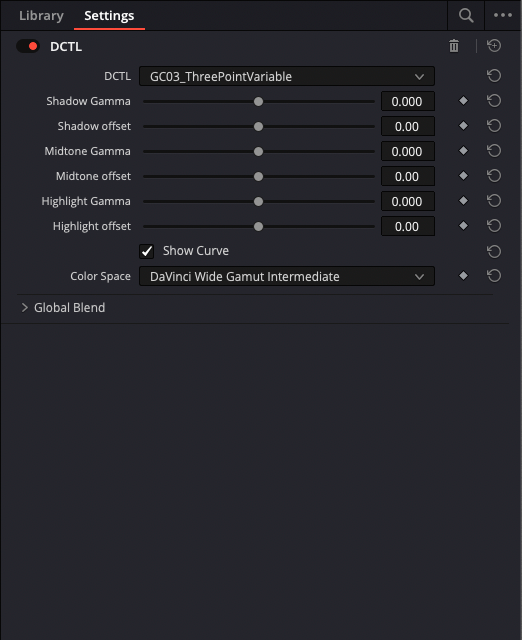
Adds ±20% X-position control per point. Move pivots off the standard 25 / 50 / 75.
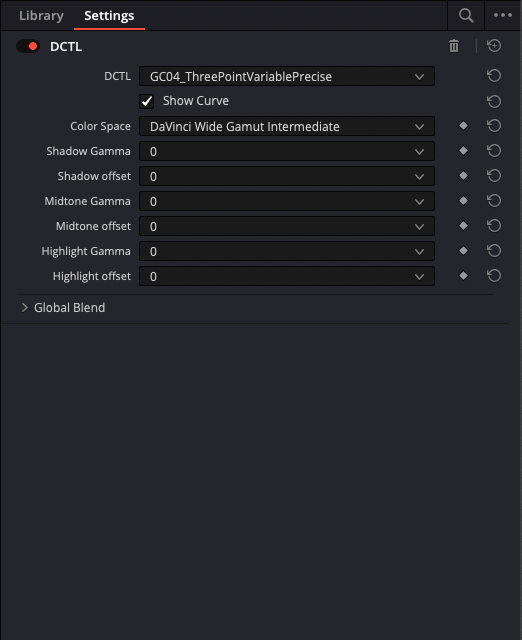
Gamma and position both gridded — 0.25 stops / 5% steps.
7 points every 12.5%, gamma + ±10% position sliders. Detailed sculpting.
Seven points, all parameters gridded — 0.25 stops / 2.5% steps. The primary look tool.
Controls reference
Each DCTL exposes its controls in the node’s Settings tab. The set varies by variant, but the vocabulary is consistent.
- Gamma (per point)
- The core control. Sets the gamma adjustment at that control point in stops. Free-drag in standard variants; a dropdown of 0.25-stop steps in Precise variants.
- Position (per point)
- Variable variants only. Shifts the control point along the input axis — ±20% (GC03/04), ±10% (GC05), ±2.5–5% steps in Precise variants.
- Show Curve
- Toggles the real-time curve overlay on the viewer, with control-point markers and stop labels.
- Color Space
- Selects the log space the normalisation is calibrated to — DaVinci Wide Gamut / Intermediate or ACEScct.
- Reset
- Returns every parameter to identity (0.00 stops, default positions).
Try the live overlay on the GammaCurve product page — drag a control point and watch the spline and stop labels update.
Colour spaces
GammaCurve supports two log working spaces. Middle gray is the pivot point in both — the normalisation is calibrated to each one independently, so a +1 stop midtone adjustment looks the same regardless of pipeline.
| DWG / Intermediate | Default | DaVinci Wide Gamut / Intermediate. Selected by default in every DCTL. |
| ACEScct | Optional | Switch via the Color Space dropdown in any DCTL. |
Troubleshooting
- The DCTL doesn’t appear in the list
- Refresh your LUT list (right-click → Refresh) and confirm the .dctl files are in the correct LUT folder. Restart Resolve if needed.
- The curve overlay isn’t showing
- Enable Show Curve in the node’s Settings tab, and make sure the node is selected on the viewer.
- Adjustments look wrong / clipped
- Confirm the node sits inside your log grading space, before the output transform, and that the Color Space matches your pipeline.
- Values don’t match between clips
- Use a Precise variant (GC02/04/06). The gridded dropdowns make every parameter readable, writable, and exact.
The full user manual
Download the full user manual.
Still stuck?
Reach the team directly — most replies land within one business day.